ChatGPT Google Sheets Extension: No API Key Needed
Most ChatGPT Google Sheets extensions bill you per token. PromptClick sends each row to the ChatGPT tab you already use. When each fits, plus 5 recipes.
Search for a ChatGPT Google Sheets extension and you’ll get two kinds of tool under one name. The first runs ChatGPT inside your cells and charges you for every answer. The second sends a row’s prompt to the ChatGPT tab you already have open. PromptClick, the extension we make, is the second kind.
We’ll say up front that the first kind is sometimes the right call. Which one you need depends on one question: will a person read every answer? Below is how to tell, plus five formulas you can paste in today.
Two kinds of “ChatGPT in Google Sheets”
Formula add-ons
You install these from the Google Workspace Marketplace. They add a function like =GPT("summarize", A2). Fill it down a column and each cell calls the OpenAI API and writes the answer in place.
For big jobs that run on their own, that’s hard to beat. Think 5,000 support tickets to tag, or a whole catalog to sort into categories.
The catch is the bill. You already pay for ChatGPT, and now you pay again for the add-on’s credits or your own API key, usually per token. Some formulas also re-run when the sheet changes. Each re-run is another API call.
Extensions that hand off to ChatGPT
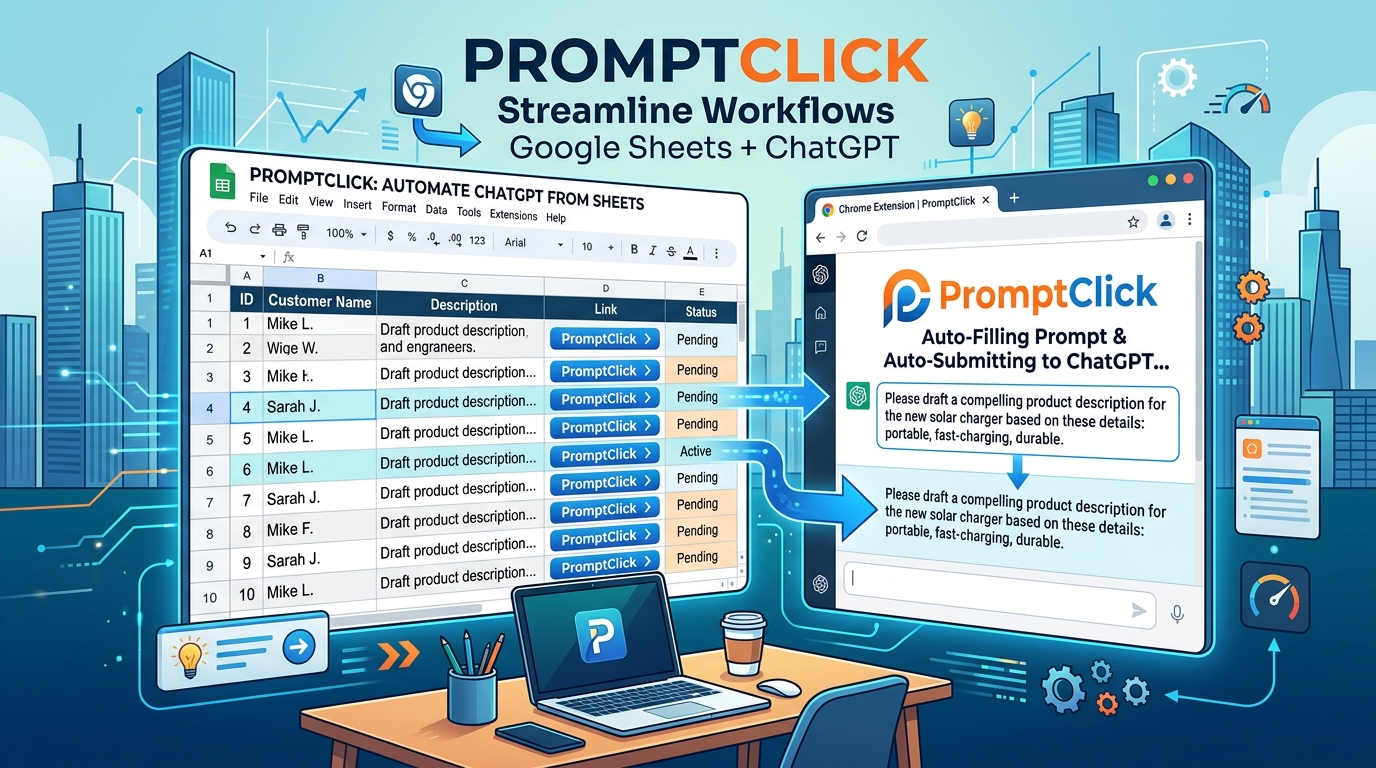
PromptClick works the other way round. Your sheet holds links. Each link carries a prompt built from that row’s data. Click it and ChatGPT opens with the prompt already in the chat box. Turn on auto-submit and it’s sent too.
The prompt lands in your normal ChatGPT session. So you get your plan’s model, your custom instructions, and the chance to say “shorter” before anything goes back into the sheet.
It’s a speed-dial button for each row, more or less.
Side by side
| Formula add-on | PromptClick | |
|---|---|---|
| Where the answer lands | In the cell | In your ChatGPT or Gemini tab |
| Cost | Per token or per month, on top of ChatGPT | Free; uses the plan you already have |
| API key | Usually yes | No |
| Who reviews each answer | Nobody, unless you check later | You, before it goes in the sheet |
| Follow-up questions | Not really | Yes, it’s a normal chat |
| Best batch size | Hundreds to thousands of rows | A few to a few hundred rows |
| Works outside Sheets | No | Yes, right-click any selected text |
Which one should you use?
Get a formula add-on if you have thousands of rows and nobody will read the answers one by one. It also wins when the output is tiny and structured, like a category label or a yes/no. And if other formulas need those answers sitting in cells, that settles it. You’ll need to be OK with an API key and a usage bill. PromptClick can’t compete there, and we won’t pretend otherwise. Nobody should click 5,000 links.
PromptClick makes more sense when someone edits every answer before it ships. Product copy, cold email openers and client summaries all get edited. If a person checks each one, that person might as well be in the chat.
Then there’s the double bill. If your team already pays for ChatGPT, a second subscription for the same model is hard to justify.
Back-and-forth is the other giveaway. “Less salesy.” “Try one for CFOs.” Notes like that are a conversation, and a cell formula can’t hold one.
Two smaller reasons come up a lot too. A shared sheet of links keeps a whole team on the same approved prompt wording. And some IT departments let people use ChatGPT in the browser but won’t issue API keys. PromptClick needs no key.
How PromptClick works
Here it is in action:
You can send a prompt three ways.
The simplest is a link in a cell. Press Ctrl+K and paste an address that starts with https://makeinfo.co/opengpt?prompt=, followed by your prompt.
The useful one is a HYPERLINK() formula. You build the prompt from the row’s own columns and fill it down. This is what turns PromptClick from a bookmark into a real ChatGPT Google Sheets extension:
=HYPERLINK("https://makeinfo.co/opengpt?prompt=" & ENCODEURL(A2), "Ask AI ↗")Don’t drop the ENCODEURL(). It makes spaces, line breaks and symbols safe inside a web address. Without it, the first & or # in a prompt cuts the rest off. The HYPERLINK() prompt links post covers the link format in more depth, including prompts packed with quote marks.
The third way skips Sheets entirely. Highlight text on any web page, right-click, and choose Send selection to ChatGPT. On the extension’s tools page you can set text to add before and after the selection. That way every selection gets the same instructions wrapped around it.
Setup
- Install PromptClick from the Chrome Web Store.
- Click the extension icon and pick ChatGPT or Gemini. Decide whether you want auto-submit.
- Check you’re logged in to ChatGPT or Gemini in the same Chrome profile.
There’s no account to create and no script editor to open. It takes about two minutes.
Five recipes to paste into your sheet
Each one assumes your data starts in row 2. Put the formula in an empty column and drag it down.
1. Product descriptions from a catalog
Columns: A = product name, B = key feature, C = audience.
=HYPERLINK("https://makeinfo.co/opengpt?prompt=" & ENCODEURL(
  "Write a 2-sentence product description for " & A2 &
  ". Lead with this benefit: " & B2 &
  ". Written for " & C2 & ". No exclamation marks."
), "Write copy ↗")
The “no exclamation marks” line is there for a reason. Leave it out and you’ll see why.
2. A cold email opener for each lead
Columns: A = first name, B = company, C = a recent detail (funding round, new hire, launch).
=HYPERLINK("https://makeinfo.co/opengpt?prompt=" & ENCODEURL(
  "Write one opening line for a cold email to " & A2 & " at " & B2 &
  ". Reference this: " & C2 & ". Under 25 words. Don't start with 'I'."
), "Draft opener ↗")
This is the recipe where reading each answer matters most. One bad opener, sent to 200 people, does more harm than sending none.
3. Summarize survey or support replies
Column A = the raw reply.
=HYPERLINK("https://makeinfo.co/opengpt?prompt=" & ENCODEURL(
  "Summarize this customer reply in one sentence, then label the sentiment as positive, neutral or negative: " & A2
), "Summarize ↗")
Got 3,000 replies? Use a formula add-on for this one. Got 40 from this week’s churn survey? Read them yourself, with ChatGPT doing the first pass.
4. Meta descriptions for blog posts or product pages
Columns: A = page title, B = target keyword.
=HYPERLINK("https://makeinfo.co/opengpt?prompt=" & ENCODEURL(
  "Write 3 meta descriptions for a page titled '" & A2 &
  "'. Include the phrase '" & B2 & "'. Each between 140 and 155 characters."
), "Meta ideas ↗")
Ask for options, not one answer. ChatGPT is bad at counting characters, so check the lengths before you paste one in.
5. A team prompt library
No row data this time. Make a sheet with a Category column, a Prompt name column and a link column. Fill it with the prompts that already work for you, like the email rewriter, the meeting-notes summarizer or the “explain this contract clause” one. Then share it.
The prompt someone spent 20 minutes perfecting is now one click for everyone else. When they improve it, the whole team gets the new version.
The trade-offs
Answers don’t flow back into the sheet. You copy across the one you like. That’s the price of reading each answer, and for most jobs it’s a fair one.
It only works in Chrome, and every teammate needs the extension. Each click opens a new tab, so close them as you go. Otherwise you’ll have 40 ChatGPT tabs open by lunch.
ChatGPT and Gemini redesign their pages now and then. When that happens, PromptClick can lose track of the chat box for a while. It then copies the prompt to your clipboard and tells you to paste it, so the click still works.
Finally, keep secrets out of links. PromptClick has no backend and stores nothing. But a prompt inside a link is still sitting in a URL. If you wouldn’t type it into an address bar, don’t put it in a link.
Try it on one row
PromptClick is free. Add it to Chrome, paste recipe 1 into a sheet, and click the first link. If ChatGPT opens with the product description prompt already typed in, drag the formula down.
The PromptClick product page has a one-minute demo and the changelog. For other spreadsheet time-savers, see our Google Sheets productivity tips.